Create and manage jobs
Create a job from a customer or an accepted quote, set the time and who it's assigned to, and move it through its statuses to completed.
A job is the work itself: the address, time, who's doing it, the checklist, photos, costs and sign-off.
Create a job
- From an accepted quote. A job is created automatically.
- From the Jobs page. Tap + Job, choose the customer on the form (or type a new one in) and fill in the details. Or open a customer and tap New job.
Enter what needs doing, the address, start time and length, and who it's assigned to, then tap Create job.
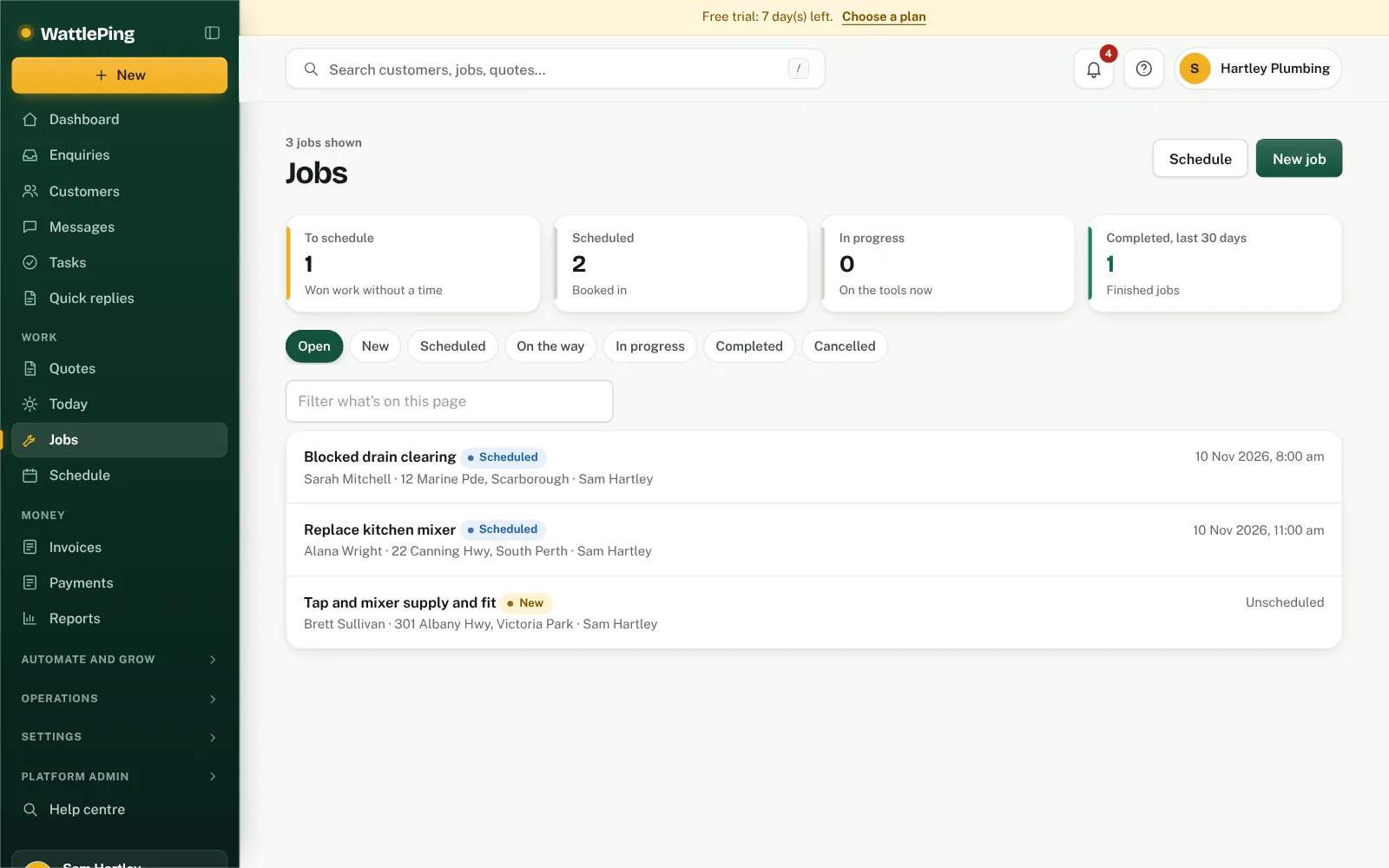
Job statuses
New, Scheduled, On the way, In progress, Completed and Cancelled.
On the job page you can:
- Call the customer, get Directions, or text On my way (texting needs a business number).
- Start job and Mark complete.
- Add checklists, photos and a customer sign-off.
- Record costs and time.
- Add Notes.
- Open Job details to set a priority (urgent, high, normal or low), site access such as a gate code or a dog in the yard, internal instructions only your team sees, and completion notes.
- Scroll to Activity to see every change in order: who rescheduled, reassigned or cancelled the job, the emails and texts sent about it, and notes, with when each happened. The customer's details, with Call, Text and Email buttons, are at the top of the job.
- Create invoice when the work is done, or Reopen a completed job.
- Edit job to change the title, address, time or who it's assigned to, or Cancel job. You can add a reason when you cancel.
Who sees what
Technicians only see jobs they lead or are on the crew for, including the site access and instructions. They can add completion notes but can't change priority, instructions or the schedule. Owners and office admins see every job.
Lead and crew
The person in Assigned to is the job lead. To add more people, use Add to crew in the job's Crew section; you can add staff with a login and contractors without one. Under Needs, list skills or licences the job requires, such as White Card. WattlePing then warns you beside each person if they're missing one, are on leave, aren't usually available that day, or have overlapping work. Technicians see the names of the crew but not the warnings. See Add team members and manage your crew.
Can't find it?
The assistant answers from these articles and tells you when it isn't sure. If it can't help, it passes your question to the team.