Use the schedule and the Today screen
See jobs by list or week, filter by person, and give your crew a simple Today screen with call, directions and on-my-way buttons.
Two views help you stay on top of the day.
Schedule
Open Schedule to see this week. On a computer it is a calendar with the hours down the side: each job sits at its start time and is as tall as its length, and its colour shows whether it is scheduled, on the way, in progress or completed. Tap a job to see its details above the calendar, with buttons to open the job or the customer. On a phone the week is a day-by-day list instead. Today jumps back to the current week. Use Month for the whole month and List for the next two weeks.
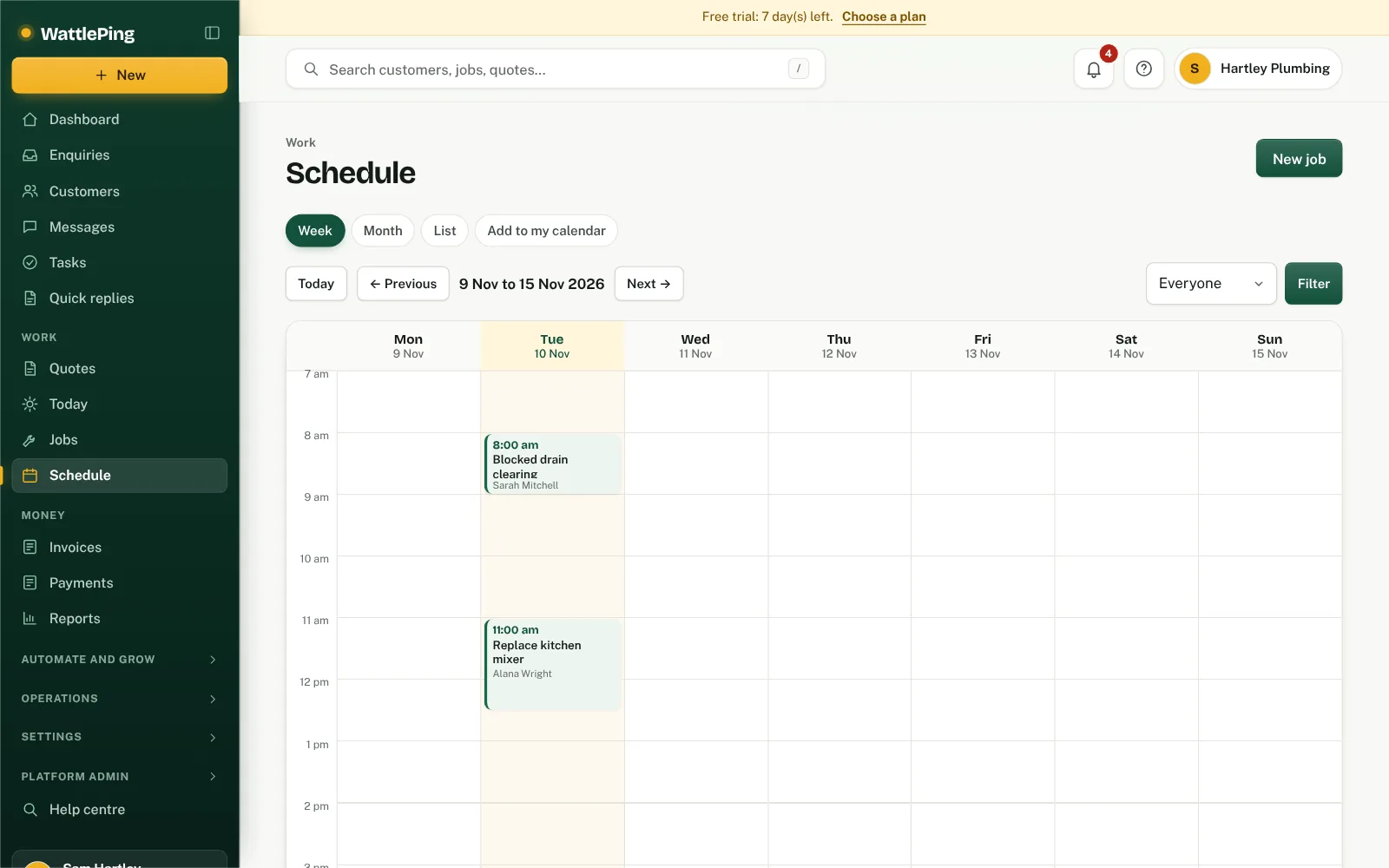
- Use the filter to show one person or everyone. Filtering by a person shows the jobs they lead and the jobs they're on the crew for.
- Technicians see the jobs they lead and the jobs they're on the crew for.
- Tap a job to open it.
- Add to my calendar, in the ... menu beside + Job, gives you a private link for Google, Apple or Outlook. See Show your jobs in your calendar.
Today
Today is the phone-first list for the day. Staff use it for their own jobs: the jobs they lead and the jobs they're on the crew for. Each job has buttons to:
- Call the customer.
- Get Directions.
- Text I'm on the way (needs a business number).
- Start job and Mark complete.
You'll also see Still open from earlier and Coming up. Owners and office admins can switch between My jobs and Everyone.
My week
Tap My week at the top of Today, or open it from the menu, to see your jobs for the whole week. Each job is marked Lead or Crew. My week also shows the time you've clocked, your usual availability, and your leave and roster requests. See Add team members and manage your crew.
Add to your phone's home screen
WattlePing runs in your phone's browser, so you can add it to your home screen for one-tap access.
Can't find it?
The assistant answers from these articles and tells you when it isn't sure. If it can't help, it passes your question to the team.