Use job checklists, photos and customer sign-off
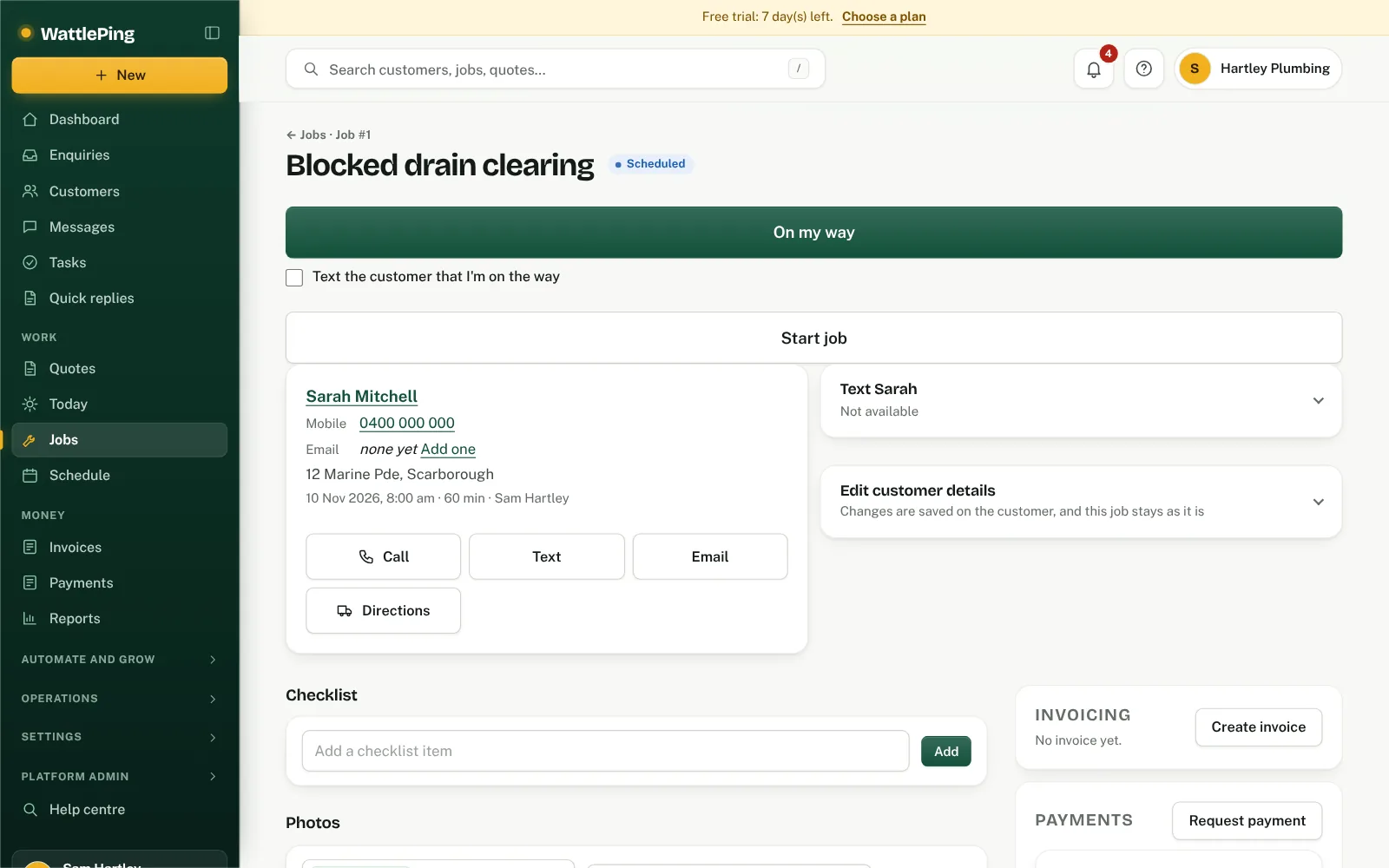
Tick off trade checklists on your phone, attach photos to the job, and get the customer to confirm the work is complete.
These tools keep proof of the work with the job, which helps if a customer ever queries it.
Checklists
When you choose your trade at sign-up, WattlePing sets up checklists that suit it, for example isolating water and a pressure test for plumbing.
- Open the job and find Checklists.
- Tap Start checklist.
- Tick off each item as you go. The job shows who did it and when.
Photos
On the job, tap Add photo and take or choose a picture. Photos are kept with the job.
Customer sign-off
When the work is finished, enter the customer's name and tap Save sign-off. The customer confirms the work was completed to their satisfaction, and the job records who signed off and when.
Notes
Use Add a note for anything else worth remembering, like access details or what you found.
Common questions
Can I make my own checklist?
The checklists come from the trade you chose. To use a different set, contact the team and tell us what you need.
Can't find it?
The assistant answers from these articles and tells you when it isn't sure. If it can't help, it passes your question to the team.