Understand your dashboard
The dashboard shows what needs your attention today: new enquiries, quotes to chase, overdue invoices, today's jobs and your first steps.
The dashboard is your home screen. Open Dashboard in the left menu, or Home on a phone.
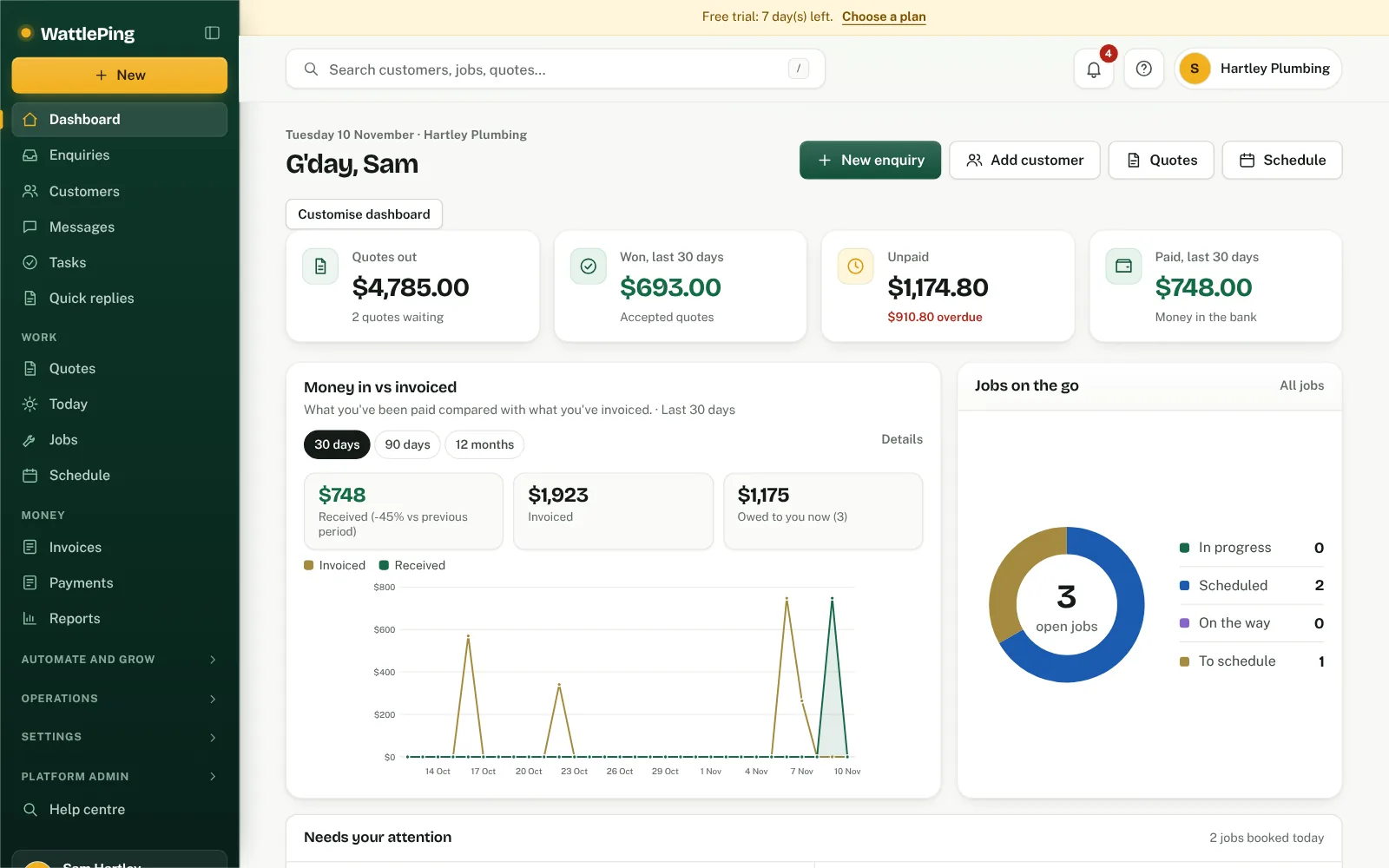
Headline figures
At the top, four cards show Quotes out, Won, last 30 days, Unpaid (with how much is overdue) and Paid, last 30 days. Tap a card to open that list. If you have a business number, a fifth card counts missed calls.
Money chart
Under the needs-attention list, Money in vs invoiced compares what you've been paid with what you've invoiced; switch between 30 days, 90 days and 12 months, and hover or tap a point for exact numbers. It uses only your own records. Open Reports for the full set of charts and custom dates.
Needs your attention
Under the four figures is a short list of things waiting on you. It shows the first three; choose Show more to see the rest. Tap any line to jump to that list:
- New enquiries waiting for a reply. If any have been waiting over a day, the line says how many.
- Overdue follow-ups, or ones due today, from Tasks.
- Customers with no phone or email, so you know who you can't contact yet.
- Quotes to chase: sent, but no answer yet.
- Overdue invoices past their due date.
- Jobs to schedule: won work without a time yet.
- Jobs booked today, plus how many more are booked in the next 7 days.
When there's nothing, it says you're all caught up.
Crew today
If more than one person works on your jobs, or something about your crew needs you, a Crew today panel shows after the Today panel. It shows today's jobs and any with nobody on them yet, who is clocked on, who is away on approved leave, timesheets and leave requests waiting for approval, licences expired or expiring soon, and onboarding still open. Each line links to the matching schedule or the Crew page. The panel is hidden for one-person businesses.
More charts
At the bottom of the dashboard, choose More charts. Jobs on the go is a ring showing your open jobs by stage: to schedule, scheduled, on the way and in progress (if you have no open jobs, it says so instead of drawing a ring). The Enquiries and conversion chart shows how many enquiries came in and how far they got, with the same 30 days, 90 days and 12 months switch.
Quick actions
Four short buttons at the top add something new: + Enquiry, + Quote, + Job and + Invoice. The ... menu beside your greeting holds Add customer, All quotes, Schedule and Customise dashboard.
First steps
On a new account you'll see a short checklist, with the first four steps that get you to a real quote. Once those are done, the next three steps show, with the rest folded under "more to do". They cover follow-ups, lead emails, two-factor login and inviting a team member. See Set up WattlePing in your first 30 minutes.
Notifications
On a computer, the bell at the top right shows a red number when something needs you, and lists those things when you click it: overdue or due-today tasks, new enquiries waiting, overdue invoices, quotes to chase, jobs to schedule, crew time entries to approve, leave requests, and licences expired or expiring in the next 30 days. Each line opens the matching list. If nothing needs you it says you're all caught up. The bell is for the owner and office admins, and there is no bell on a phone: use the Needs your attention list on the dashboard instead.
Search
On a computer, use the search box at the top of the page. On a phone, use the magnifier at the top. Type at least two letters to search customers, jobs, quotes and invoices. Try a name, a phone number or part of an address.
Money and work at a glance
For full numbers and longer periods, open Reports.
Common questions
Why can't I see some of these things?
Technicians see only jobs they lead or are on the crew for. The owner and office admins see everything except owner-only areas like billing.
Can't find it?
The assistant answers from these articles and tells you when it isn't sure. If it can't help, it passes your question to the team.