Create and send an invoice
Create an invoice from a finished job or a customer, send it by link, email or text, then mark it paid when the money arrives.
An invoice takes a minute when the job is already in WattlePing.
Create the invoice
- Open the finished job and tap Create invoice, or go to Invoices and tap + Invoice, then choose the customer on the form (or type a new one in).
- Add lines from your price list, or your own lines with a quantity and a price before GST. If it came from a job or quote, the lines can come across.
- Add Notes if you need them.
- Tap Save invoice. It stays a draft.
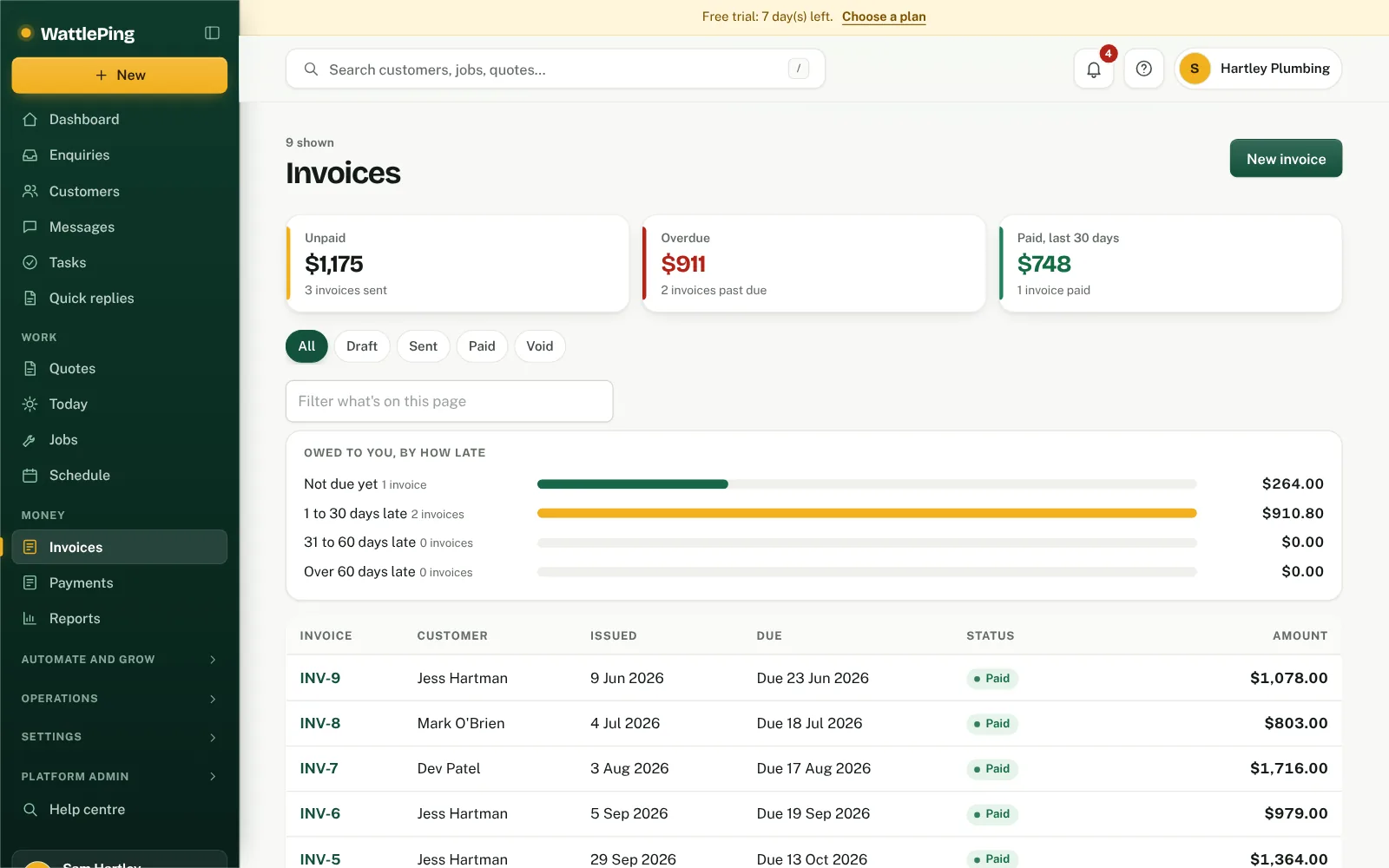
Send it
On the next screen choose how:
- Email invoice.
- Get link only, to paste anywhere.
- Text invoice link, which needs the business number.
Mark it paid
When the money lands, open the invoice, choose how it was paid (bank transfer, card, cash or other) and tap Mark paid. If you made a mistake, you can Void invoice.
Statuses
Draft, Sent, Paid and Void.
Common questions
Can customers pay by card on the invoice?
Not currently. Your payment instructions, such as bank transfer details, appear on every invoice, and you mark it paid when the money arrives.
Can I print an invoice?
Yes. Open the invoice and choose Print.
Preview before it sends
Press Email invoice or Text invoice link and WattlePing first shows exactly what your customer will receive. Nothing is sent until you press Send on that page.
Can't find it?
The assistant answers from these articles and tells you when it isn't sure. If it can't help, it passes your question to the team.