Send your first quote
Build a quote from your price list, save it as a draft, and send it by link or email. Customers accept from their phone with no login.
You can have a quote in front of a customer in a couple of minutes.
Build the quote
- Go to Quotes and tap + Quote. Choose the customer on the form, or type a new one in. You can also open a customer and tap New quote.
- Add a Quote title, for example "Hot water system replacement".
- Tap your quick lines to add items from your price list, or add your own lines with a quantity and a price before GST.
- Choose a Type for each line (Labour, Materials, Service or Other). Mark a line Optional if it's an extra the customer can choose; optional lines are not in the total unless they tick them.
- Choose whether this is a Quote (a fixed price) or an Estimate (approximate, the price may change). You can turn an estimate into a fixed-price quote later from the quote page.
- Add Notes for the customer if you want to explain anything.
- Tap Save quote. It stays a draft until you send it.
Send it
On the next screen choose how to send it:
- Customer link. Copy the link and paste it anywhere you chat with the customer.
- Email quote. Sends it by email.
- Text link to customer. Sends it by text, which needs the business number.
What the customer sees
They open the link on their phone and see your business details, the lines and the total including GST. They type their full name and tap Accept quote, or choose No thanks. No login is needed. See How customers accept or decline a quote.
After you send it
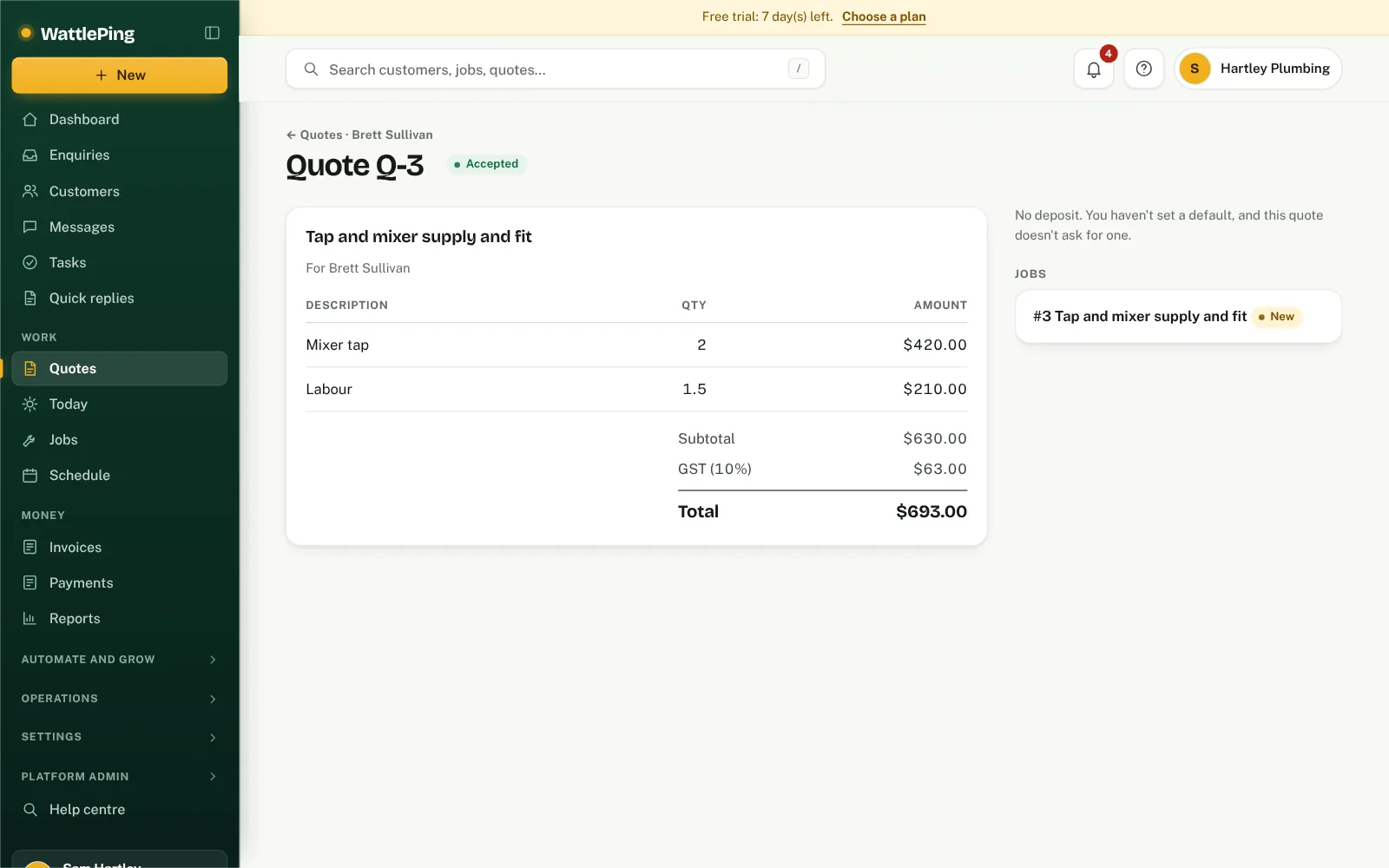
- The quote status changes from Draft to Sent, then Accepted or Declined.
- When a customer accepts, the quote becomes a job automatically.
- If the customer agreed another way, open the quote and choose Mark accepted (tick any optional extras they agreed to) or Mark declined.
- Every time you edit a quote, the earlier version is saved under History on the quote page, with its lines and price.
Preview before it sends
Press Email quote or Text link to customer and WattlePing first shows exactly what your customer will receive: who it goes to, the subject and the message. Nothing is sent until you press Send on that page. You can also open the quote the way your customer sees it.
Can't find it?
The assistant answers from these articles and tells you when it isn't sure. If it can't help, it passes your question to the team.