Use the Enquiries inbox to see every lead in one place
Every web form enquiry, lead email, missed call and text lands in one inbox, tied to a customer. Learn to search, filter and open them.
Enquiries is your inbox for everyone asking for work. Each enquiry is attached to a customer record, so you always see the full history.
What lands here
- Enquiries from your website enquiry form.
- Leads from lead-site emails you forward.
- Missed calls and texts, if you have a business number.
- Enquiries you add yourself.
Find an enquiry
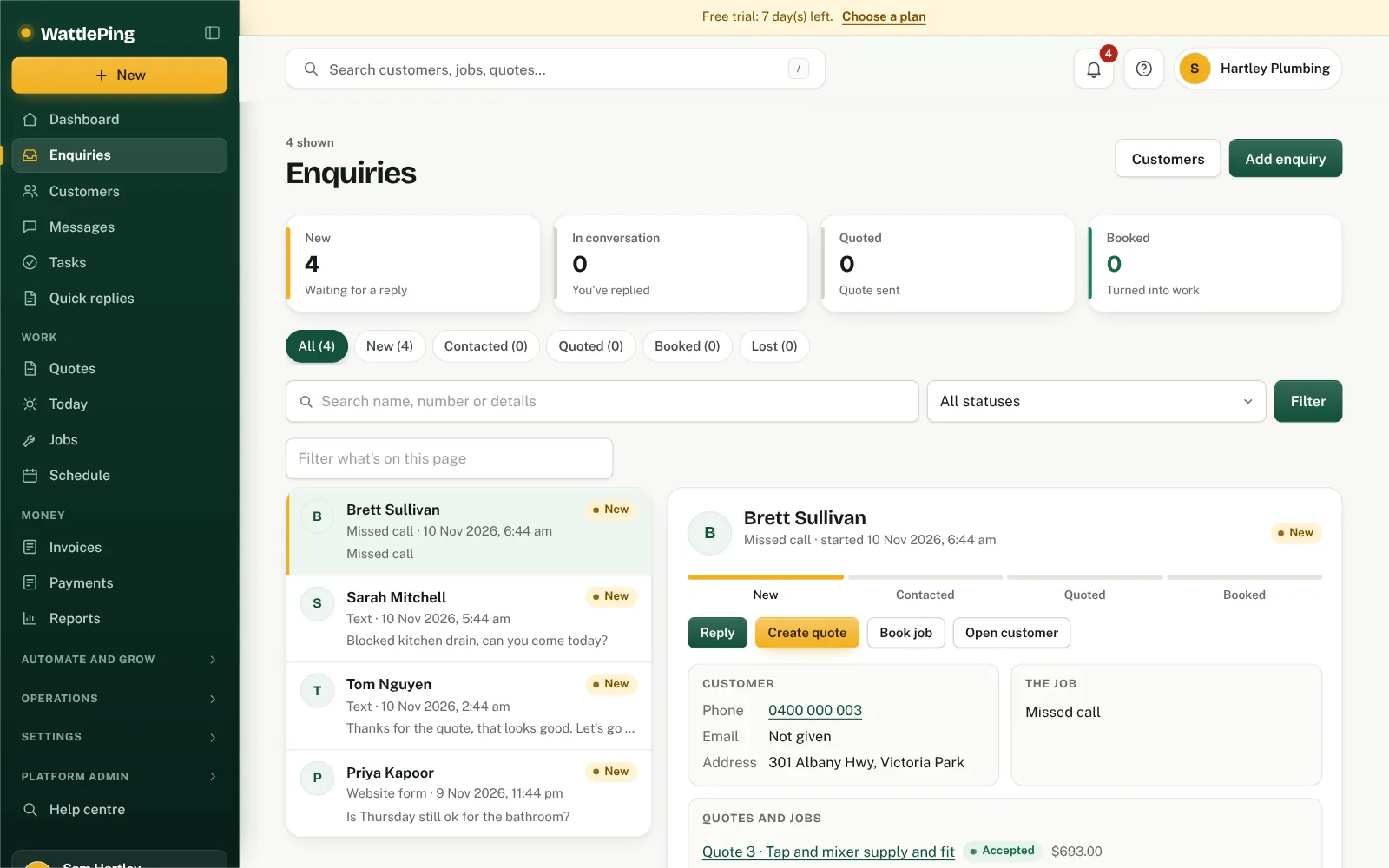
Across the top, four cards count your enquiries by stage: New, In conversation, Quoted and Booked. Tap one to see just those. The New card says how many have been waiting over a day.
- Open Enquiries in the left menu (under More on a phone).
- Use the search box to look up a name, number or message.
- Use the tabs under the heading (All, New, Contacted, Quoted, Booked and Lost, each with a count) to show only those enquiries. The Filter menu next to the search box holds your saved views.
- Tap an enquiry in the list. On a computer its details open on the right: the customer's contact details, what the job is, any photos, the quotes and jobs already started, and a timeline of messages and activity. A bar across the top shows how far it has got from New to Booked. On a phone the details open on their own screen, with All enquiries at the top to go back.
- Open the ... menu and choose Open customer to see their full page.
What you can do from an enquiry
Under the progress bar are Reply and + Quote. The ... menu beside them has + Job and Open customer. Update this enquiry changes the status and the quote amount.
What you can do from the customer page
- Call them, or send a text if you have a business number.
- Use quick replies to answer in a tap.
- Start a New quote, New job or New invoice.
- Add notes and edit their details.
- Update the status of the enquiry.
Common questions
Why is a customer opted out of texts?
If a customer replies STOP, texting them is switched off and the customer page says so. They can restart it by texting START. See What happens when a customer opts out.
Can technicians see enquiries?
No. Enquiries are for the owner and office admins. Technicians see only the jobs they lead or are on the crew for.
Replying from the list
Press Reply on the enquiry to text or email the customer without opening their page. See Customer email replies and replying to enquiries.
Can't find it?
The assistant answers from these articles and tells you when it isn't sure. If it can't help, it passes your question to the team.