Add customers and import a list from a spreadsheet
Add a customer one at a time, or import a CSV file from a spreadsheet, ServiceM8, Tradify or Jobber. See which columns you need.
Every quote, job and invoice belongs to a customer, so it helps to have your customers in early.
Add one customer
- Open Customers and tap + Customer.
- Enter their name and mobile number. Company, a second phone or email, service and billing addresses, how they prefer to be contacted and tags are optional.
- Save. This adds a customer only. It doesn't create an enquiry; use Add enquiry on their page when they ask for work.
- If a customer with the same mobile or email already exists, WattlePing shows you that record instead of making a duplicate.
- From their page you can start a quote, job or invoice.
At the top of the Customers list, three cards show how many customers you have, how many were added in the last 30 days, and how much has been paid to date. You can search and filter your customer list by name, number, suburb, type or tag (open Filter for type, tag, archived customers and sort order), and the dashboard can show you customers who have no phone or email.
Tap a customer in the list and their profile opens beside it on a computer (on its own screen on a phone). It shows what they've paid and owe, their contact details, any open enquiry or task, their quotes, jobs and invoices, and recent activity, with buttons to call, start a quote, job or invoice, or Open full profile.
Import a list
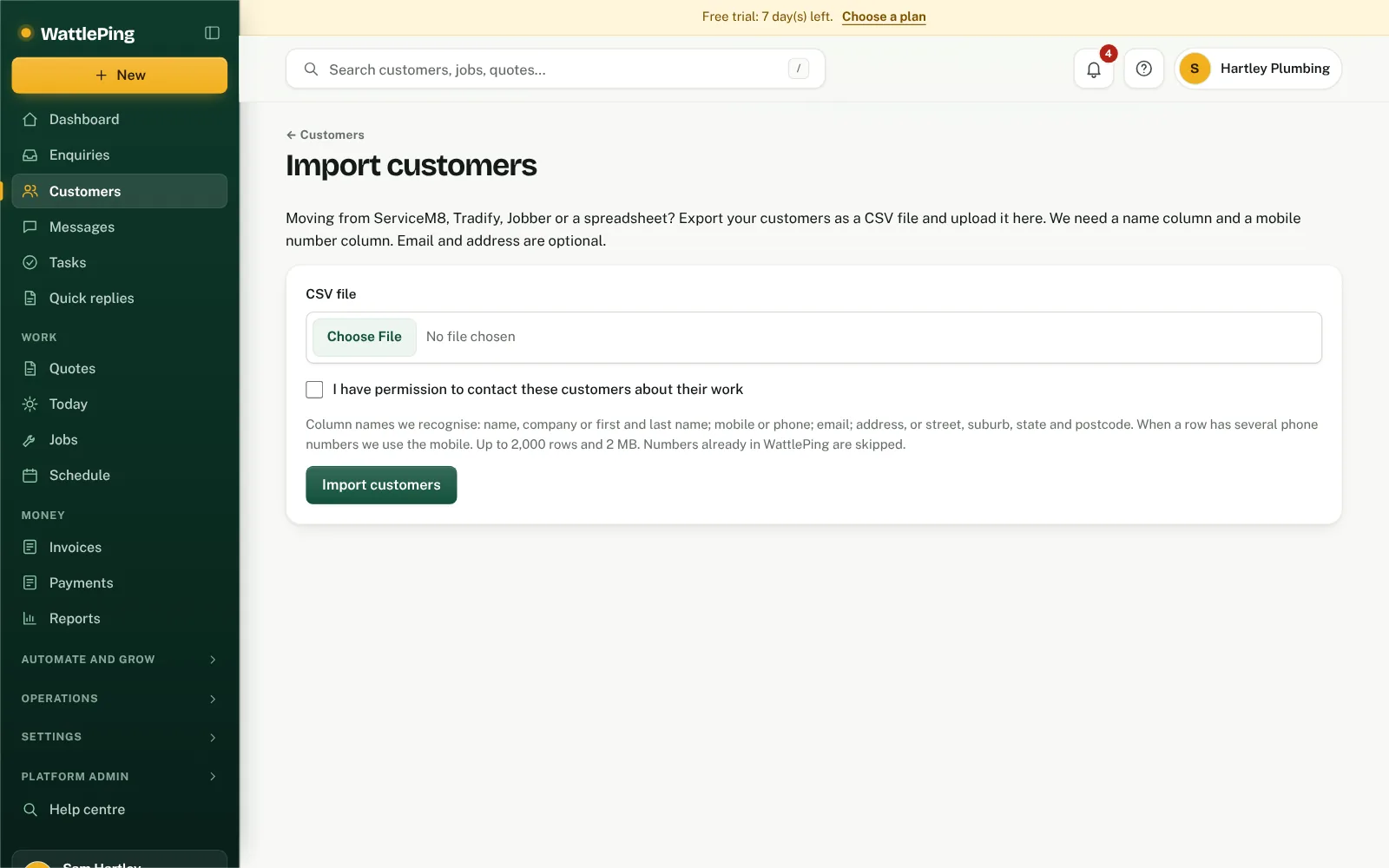
- Export your customers from your old app or spreadsheet as a CSV file.
- Open Customers, tap the ... menu beside + Customer and choose Import CSV.
- Choose the file and tick I have permission to contact these customers about their work.
- Tap Import customers.
WattlePing shows how many were added, how many were skipped because they already exist (matched by mobile number), and how many rows were skipped because the name or mobile number was missing or invalid.
What the file needs
- A name column (or company, or first and last name) and a mobile or phone column. Email and address are optional.
- Recognised column names include name, company, first name and last name; mobile or phone; email; and address, street, suburb, state and postcode.
- When a row has several phone numbers, WattlePing uses the mobile.
- Up to 2,000 rows and 2 MB per file.
Common questions
Will importing text my customers?
No. Importing only adds records. Nothing is sent.
Can I import my price list too?
Yes, separately. See Build your price list and Move across from ServiceM8, Tradify or Jobber.
Can't find it?
The assistant answers from these articles and tells you when it isn't sure. If it can't help, it passes your question to the team.